wcc2 not singin in my pc so plese ask me ans
wcc2 not singin in my pc so plese ask me ans
My photos in my gallery have duplicated to 2 - 3 or 4 copies; I did not copy any of the photos, so why did this happen? I cannot figure out how to get rid of extra copies without going to each, individual photo.
Would this of happened about a year or so ago, when Microsoft was changing things, and I had to find my Microsoft Student Pack with Word, Excel, etc
You may receive an email message consisting of several partial messages¹. The subject will be the same for all of them, with the addition of a suffix giving the number of the partial message concerned and the total number of parts. This article explains
how to recombine these parts in Windows Live Mail 2012².
Other keywords: break apart, multiple messages, multiple emails,
Details
When the code for Windows Live Mail was originally written twenty years ago, the global email system could not reliably handle messages larger than, say, 50 or 100KB. To work around this limitation, the program included code to break messages into smaller parts
before transmission and also code to recombine partial messages after receipt.
Each of the partial messages will have an attachment whose name is that of the original attachment with a suffix in a format like [nn/mm] giving the part number and the total number of parts. Each of the attachments has the extension .dat indicating that it is a data file of unspecified type.
The Recombine attachments command was removed from the message window when the menu bar was replaced by a command ribbon with the release of Windows Live Mail 2011. However, the command lives on, but it's well hidden. If you receive a series of messages like this, and you can't persuade the sender to stop breaking messages apart, you can recombine them to reproduce the original message. Here are the steps to do so:
- In the folder pane, select the folder containing the messages .
- Note the common subject of the messages concerned. You need to be able to isolate them by means of a search.
- Press Ctrl-Shift-F (or select Find > Message on the Home tab of the ribbon) to open the Find message dialogue. This dialogue can be resized to suit, unlike many others in this program.
- Enter the all or part of the message subject into the Subject box and click Find Now. This may take some time as the function trawls through every message in the folder. You can use fields other than Subject if it's more convenient, e.g. From, to isolate the partial messages.
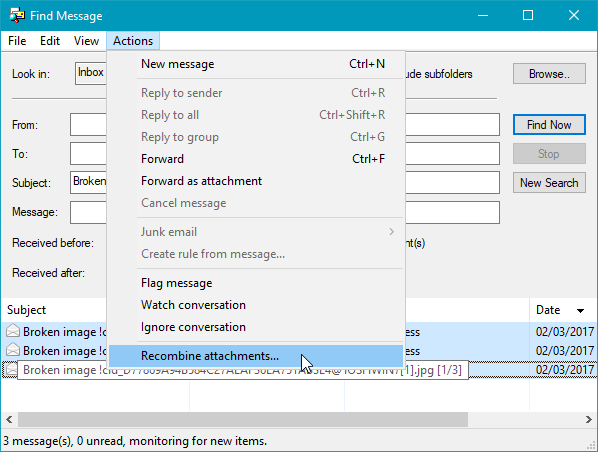
- When all the partial messages have been found, select them all³ and then select Recombine attachments on the Actions menu. You may have to reorder the messages if their suffixes are not precisely sequential.
Footnotes
- If you examine the headers of one of these messages (e.g. by selecting it in the message list and pressing Ctrl-F3), you will see near the top a Content-type: header giving the MIME type as message/partial. Some mail services - notably Outlook.com - will not accept this type.
- This procedure may also be available in Windows Live Mail 2011, but this author hasn't been able to check.
- If your search has only found the parts of a single message, pressing Ctrl-A will select them all. Otherwise, select the top one, hold Shift down and then click on the bottom one to select only the ones you want to recombine.
| A print-friendly PDF (150KB) of this article is available here: Recombine attachments in Windows Live Mail 2012 |
You may receive an email message consisting of several partial messages*. The subject will be the same for all of them, with the addition of a suffix giving the number of the partial message concerned and the total number of parts. This article explains how to recombine these parts in Windows Live Mail 2012**.
Details
When the code for Windows Live Mail was originally written around twenty years ago, the global email system could not reliably handle messages larger than, say, 50 or 100KB. To work around this limitation, the program included code to break messages into smaller
parts before transmission and also code to recombine partial messages after receipt. Each of the partial messages will have an attachment whose name is that of the original attachment with a suffix in the format [nn/mm] giving the part number and the total number of parts. Each attachments has the extension .dat indicating that it is a data file of unspecified type. The Recombine attachments command was removed from the message window when the menu bar was replaced by a command ribbon with the release of Windows Live Mail 2011. However, the command lives on.
If you receive a number of messages like this, and you can't persuade the sender to stop breaking messages apart, you can recombine them to reproduce the original message.
- In the folder pane, select the folder containing the messages .
- Note the common subject of the messages concerned. You need to be able to isolate them by means of a search.
- Press Ctrl-Shift-F (or select Find > Message on the Home tab of the ribbon) to open the Find message dialogue. This dialogue can be resized to suit, unlike any others in this program.
- Enter the all or part of the message subject into the Subject box and click Find Now. This may take some time as the function trawls through every message in the folder. You can use fields other than Subject if it's more convenient, e.g. From, to isolate the partial messages.
- When all the partial messages have been found, select them all*** and then select Recombine attachments on the Actions menu. You may have to reorder the messages if their suffixes are not precisely sequential.
Footnotes
* If you examine the headers of one of these messages (e.g. by selecting it in the message list and pressing Ctrl-F3), you will see near the top a Content-type: header giving the MIME type as message/partial. Some mail services - notably Outlook.com - will not accept this type.
** This procedure may also be available in Windows Live Mail 2011, but this author hasn't been able to check.
*** If your search has only found the parts of a single message, pressing Ctrl-A will select them all. Otherwise, select the top one, hold Shift down and then click on the bottom one to select only the ones you want to recombine.
Recent Comments